
Learn how to access a Huddle
Huddle Comments Guide
In Huddle, you can add comments in three different ways:
- Inline Comment – Tied to a specific section of the content
- General Comment – Applies to the entire Huddle
- Reply to a Comment – Commenting on an existing comment
1. Inline Comment
Follow these steps to create an inline comment in a Huddle:
Step 1: Open the Huddle

Step 2: Activate Co-Creation Mode
Huddle has two modes:
- Co-Creation Mode: Anyone can contribute
- Read Mode: View-only access
To switch to co-creation mode, click the highlighted icon:

Step 3: Select the Text
Highlight the portion you want to comment on. A menu will appear with three options:
- Share – Share the selected text
- Inline Comment – Add a comment specific to this selection
- General Comment – Comment on the entire Huddle
Choose Inline Comment:

Step 4: Add Your Comment
Enter the content of your inline comment.

Step 5: Save the Comment
Click Save to post your comment.

You will now see your inline comment displayed in the right panel:

✅ Your inline comment has been successfully added.
2. General Comment
A general comment applies to the entire Huddle, not a specific section.
Step 1: Select Any Text
Even though it’s a general comment, you still need to select some text to bring up the menu.

Step 2: Choose "General Comment"
From the menu, choose the first option, which creates a general comment.

Step 3: Write Your Comment
Enter your comment content.

Step 4: Save the Comment
Click Save to submit the comment.
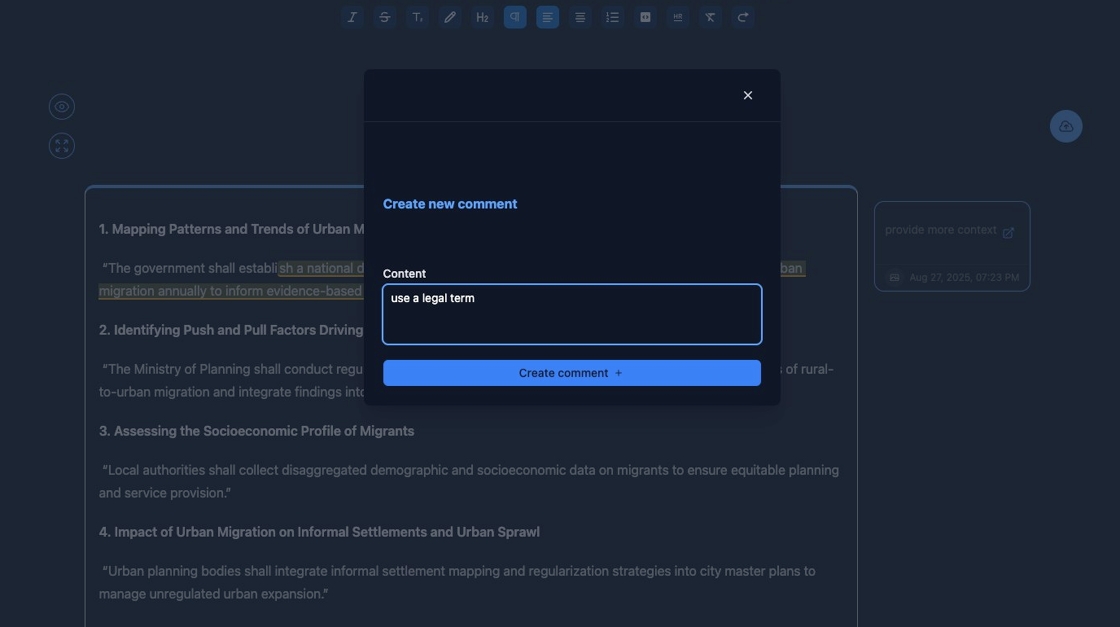
✅ You’ve added a general comment to the Huddle.
3. Reply to a Comment
You can reply to someone else’s comment using the comment-on-comment feature.
Step 1: Click on the Comment
Select the comment you want to reply to.
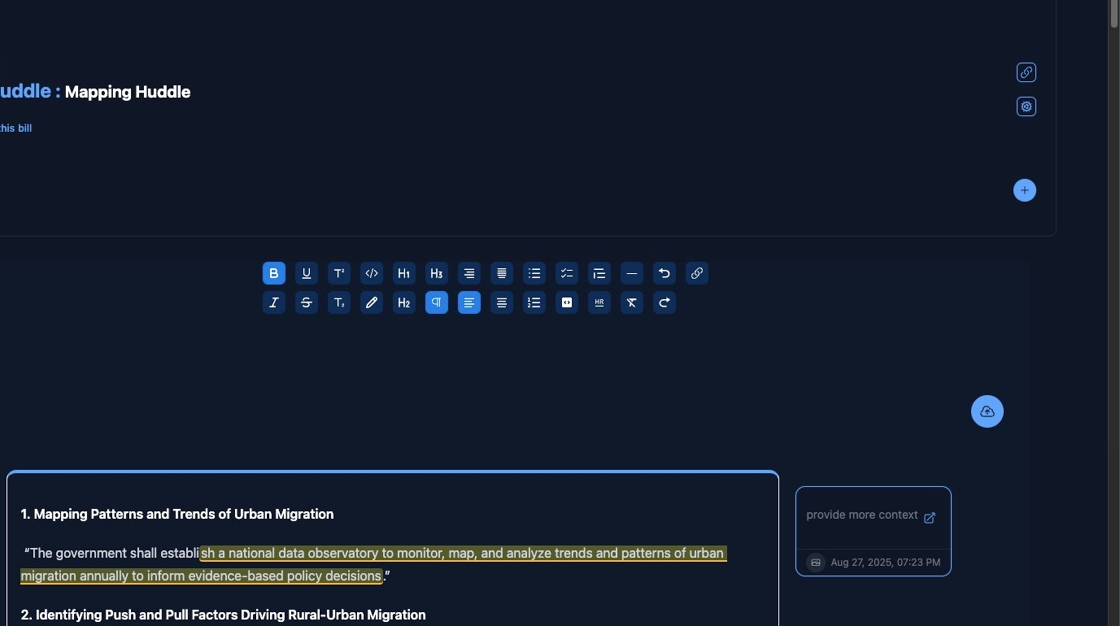
Step 2: Type Your Reply
Add your reply in the input field.

Step 3: Save the Reply
Click Save to post your comment.

Step 4: View the Reply
Your reply appears directly below the original comment.

✅ You've successfully replied to a comment.
Need help accessing or using Huddles? Visit the full Huddle documentation.